After installing your IDE/CLI agent using links from the previous module, you'll see a workspace with a few key areas (e.g., for Antigravity, see the screenshot below).
- Explorer (left): where you can find files after loading your workspace/directory via the
Open Folderbutton in the center or the top-left corner of the Home Screen. - Editor (center): where opened code and files appear.
- Agent chat (right): where you access and talk to the Agent (
Cmd + E).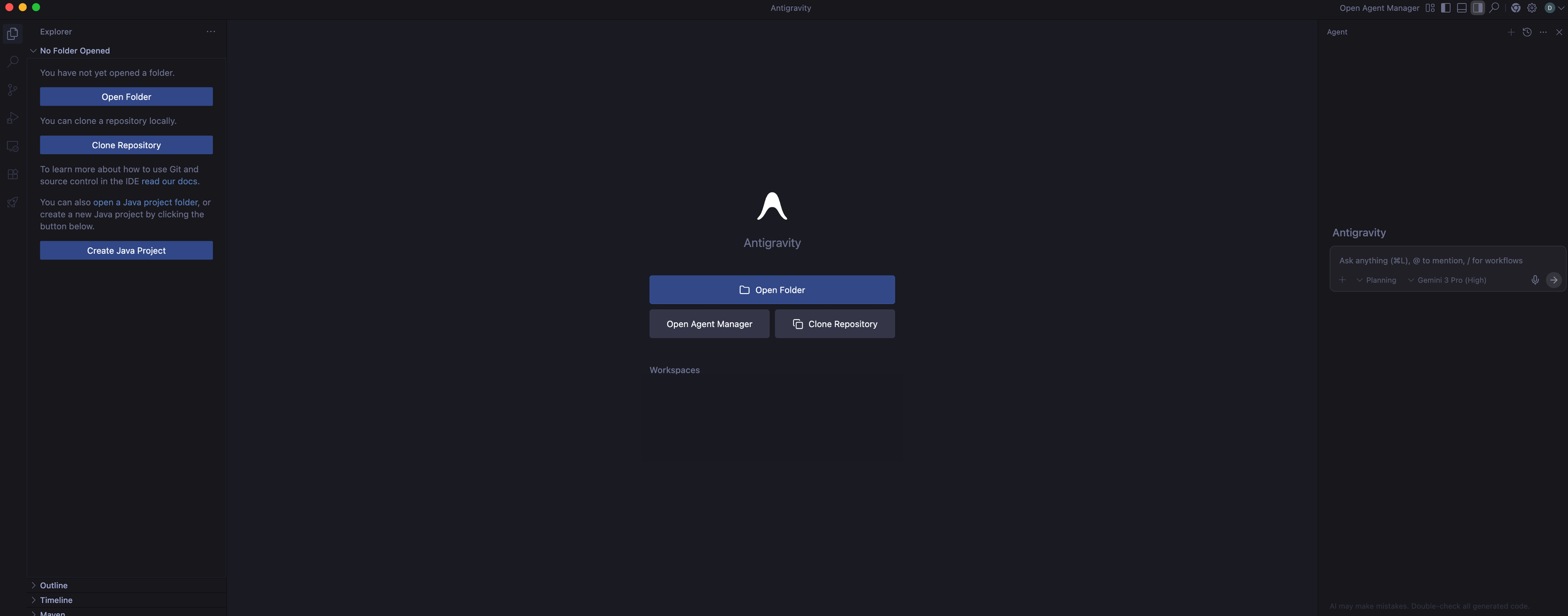
Editor Home Screen
The agent manager (extended capabilities of the chat window) of Antigravity can be accessed by clicking on the 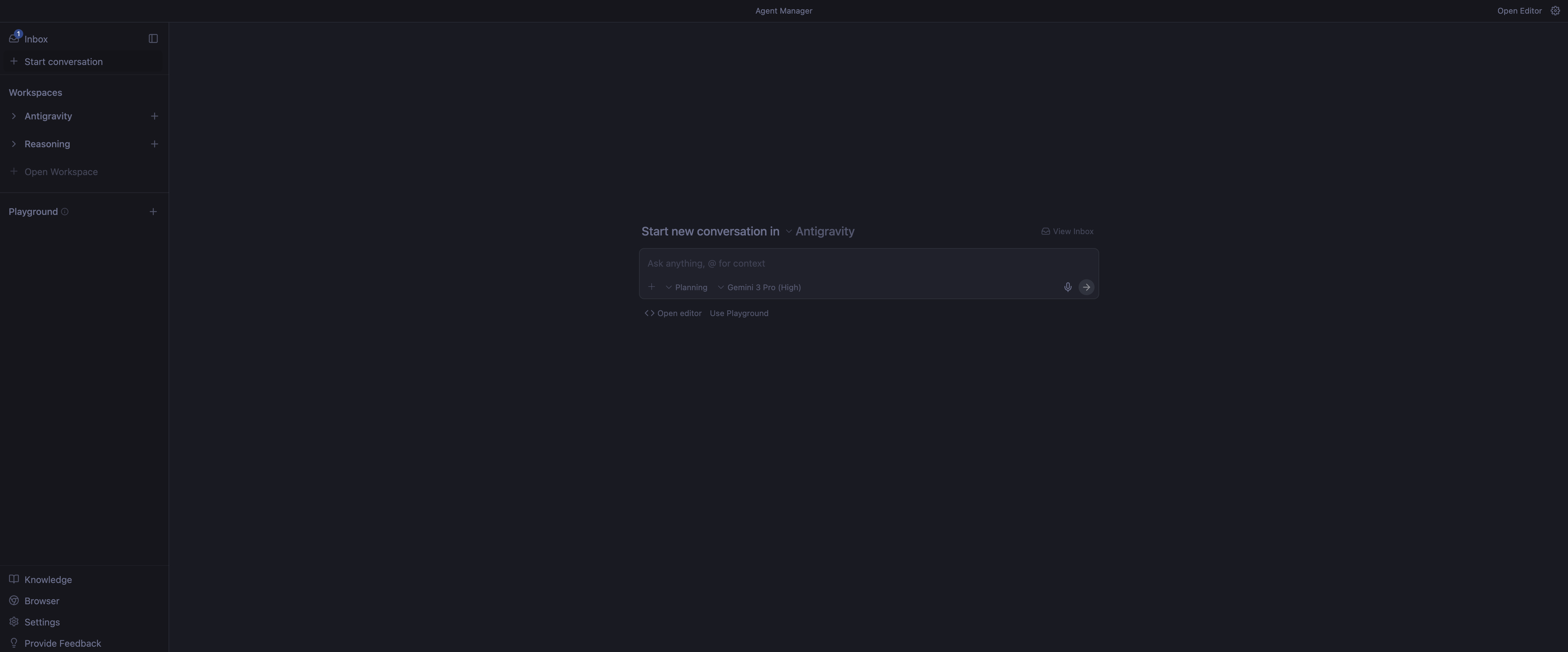
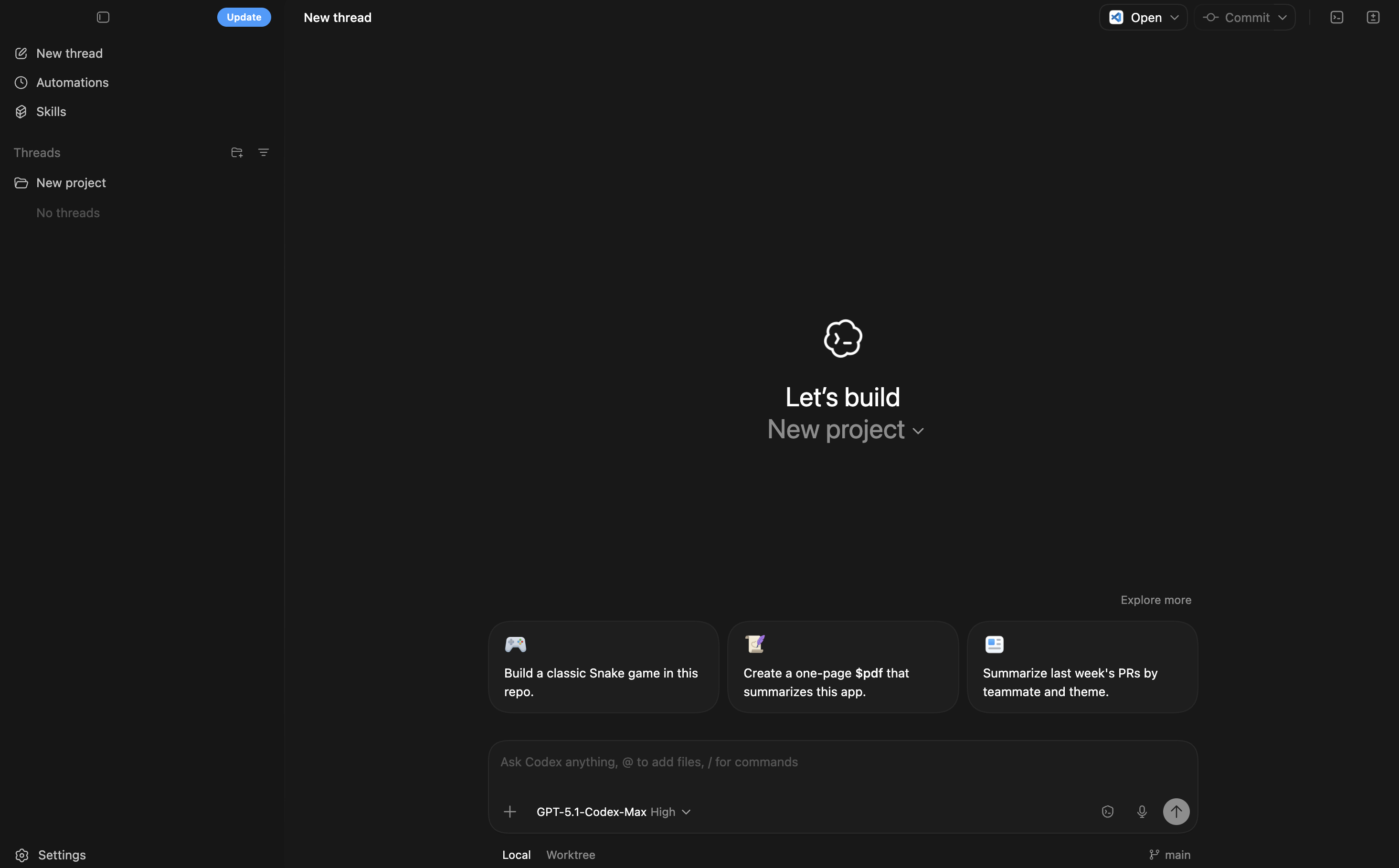 The agent manager varies slightly between different providers, but the general idea is the same. You have:
Open Agent Manager button in the top-right corner of the Home Screen or via keyboard shortcut Cmd + E. It is recommended to use the agent manager for more complex and multiple tasks.
Antigravity Agent Manager
Codex Agent Manager
- Workspace: where you can work in a specific directory, all prompts will be executed in this directory unless you specify otherwise. You can open multiple workspaces and run multiple tasks in parallel.
- Conversation/chat window: where you can select a workspace and talk to the agent.
Settings of the agent can be accessed by clicking on the ⚙ icon in the top-right/bottom-left corner of the Agent Manager for Antigravity/Codex, respectively.
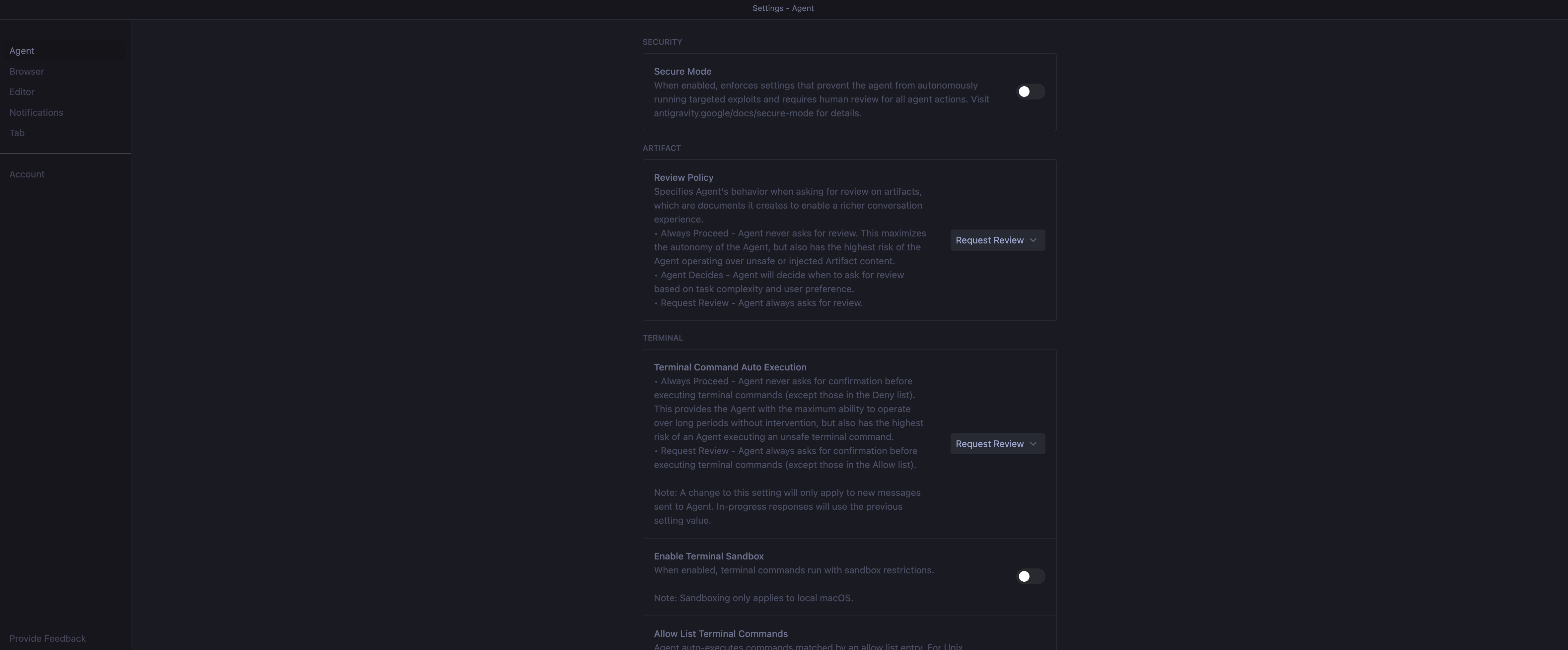
Agent Settings
Stay in control
It is recommended to keep terminal on 'Request Review' until you trust the workspace. Review every diff. Use @file references to limit scope.
Choosing your model
Both Antigravity and Codex offer multiple models. Switch based on your task complexity and your available token budget.
Antigravity (Google):
- Gemini 3 Pro (High/Low): High for complex reasoning/refactoring; Low for everyday tasks.
- Gemini 3 Flash: Instant responses. Best for quick syntax checks or small fixes.
- Claude Sonnet 4.5 / (Thinking): Excellent coding capability. "Thinking" variants plan before writing code.
- Claude Opus 4.5 (Thinking): Deepest reasoning buffer. Use for architectural design or very hard bugs.
- GPT-OSS 120B (Medium): Open-weight option for experimenting with non-proprietary models.
Codex (OpenAI):
- GPT-5.2-Codex (Medium/High/Extra High): Tuned specifically for code generation. Extra High has the best context handling + reasoning. Use High by default.
- GPT-5.2 (Medium/High/Extra High): General purpose reasoning. Use for non-code planning or creative writing tasks.